

How to Minimize MT4/MT5 RAM Footprint & Prevent Memory Leaks on High-Frequency EAs
Memory management is a critical, yet frequently overlooked, component of a stable automated trading environment. For high-frequency expert advisors (EAs) that process thousands of ticks per minute, even minor memory inefficiencies can compound into critical failures, including terminal freezes, missed trades, and catastrophic VPS crashes. The primary cause of failure is not always a poorly coded EA, but often a misconfigured terminal environment struggling against its own architectural limits.
This guide provides a direct, actionable checklist for diagnosing and resolving the most common causes of RAM exhaustion in MetaTrader 4 and 5, ensuring your algorithmic strategies operate with maximum efficiency.
1. Understand the 32-bit Memory Ceiling in MT4
The most fundamental limitation, particularly for MT4 users, is the process architecture. terminal.exe is a 32-bit application. Regardless of whether your Windows Server VPS has 8GB or 32GB of RAM, a single 32-bit process cannot address more than 4GB. In practice, due to OS-level reservations and memory fragmentation, this ceiling is often closer to 2GB - 3.5GB.
- MT4 (terminal.exe): 32-bit. Subject to a ~2-3.5GB RAM limit per instance. Running multiple EAs on numerous charts within a single terminal will quickly exhaust this address space.
- MT5 (terminal64.exe): 64-bit. Can access the full amount of RAM available on your VPS, making it inherently more scalable for complex, multi-symbol strategies.
If your strategy demands running more than 5-7 high-activity EAs simultaneously, the first optimization is to either migrate to MT5 or distribute your MT4 EAs across multiple, separately optimized terminal instances.
2. Prune Market Watch Symbols to Cut Memory Overhead
Every symbol listed in the "Market Watch" window maintains a persistent data stream from your broker's server. This consumes not only network bandwidth but also a significant amount of RAM as the terminal stores tick data, symbol specifications, and other metadata for each instrument. A default broker profile can load over 1,000 symbols, most of which are irrelevant to your strategy, needlessly consuming hundreds of megabytes of RAM.
Actionable Step:
- In your MT4/MT5 terminal, navigate to the Market Watch window (
Ctrl+M). - Right-click anywhere within the window.
- Select "Hide All". This will instantly close all unused data streams.
- Manually add back only the specific currency pairs or instruments your EAs are trading.
3. Cap Chart History to Prevent Data Overload
By default, MetaTrader is configured to store a vast amount of historical bar data for backtesting and manual analysis. For a live, high-frequency EA, this is often unnecessary overhead. The terminal loads this data into RAM, creating a significant memory burden.
Actionable Step:
- In your terminal, go to Tools -> Options.
- Navigate to the Charts tab.
- Locate the setting "Max bars in chart". The default is often 65000 or higher.
- Reduce this value to a number sufficient for your EA's indicator calculations, typically between 2000 and 5000.
- Restart the terminal for the changes to take full effect.
4. Disable Non-Essential Terminal Features
Several built-in features run as background threads, consuming CPU cycles and RAM without contributing to the core function of an automated trading strategy.
- Disable News Feed: This streaming service constantly pushes data to the terminal. (Path:
Tools -> Options -> Server -> Uncheck "Enable news"). - Disable Audio Alerts: Sound events require loading audio drivers and processing system events. (Path:
Tools -> Options -> Events -> Uncheck "Enable"). - Minimize Chart Objects: Graphical objects drawn by indicators (arrows, lines, panels) are notorious for causing memory leaks if not properly managed by the indicator's MQL code. For a pure execution VPS, run your EA on a chart with zero supplemental indicators.
5. Run in /portable Mode for Efficiency and Isolation
By default, MetaTrader installs its user data files deep within the Windows user profile (AppData directory). This can create slower file access and complicates backups. Using portable mode forces the terminal to store all its data—profiles, logs, EAs, indicators—in the same directory as terminal.exe. This reduces OS overhead and simplifies management.
Actionable Step:
- Locate the shortcut you use to launch your MetaTrader terminal.
- Right-click the shortcut and select Properties.
- In the "Target" field, add a space followed by
/portableat the very end. - Click OK and launch the terminal using this modified shortcut.
"C:\Program Files\MyBroker MetaTrader 4\terminal.exe" /portable
6. How to Identify Memory Leaks in Your Custom EA
If your terminal's memory usage continually increases over time and never stabilizes, you likely have a memory leak within a custom indicator or EA. The most common cause in MQL4/MQL5 is the improper handling of dynamic arrays that are re-declared on every tick.
Diagnostic Process:
- Open the Windows Task Manager (
Ctrl+Shift+Esc) on your VPS. - Go to the Details tab.
- Find your
terminal.exeorterminal64.exeprocess. Note its current memory usage. - Let the EA run uninterrupted for several hours. If the memory value only ever increases without ever decreasing, it is a definitive sign of a leak.
MQL4 Code Fix (Solution):
For arrays that are re-calculated on each tick, they must be properly managed. Ensure dynamic arrays are explicitly freed using ArrayFree() when no longer needed.
// Good practice: Memory is explicitly freed when no longer needed.
void OnDeinit(const int reason)
{
    ArrayFree(leakyArray);
}
The Unavoidable Bottleneck: Your VPS Hardware
While these optimizations are essential, they can only compensate for inferior hardware to a certain point. The most common performance killer in the retail VPS market is CPU Overbooking, where a provider places dozens of traders on a single, slow CPU core. This creates a resource-starved environment where your terminal fights for processing time, leading to execution lag and freezes.
At MyFXVPS, we have engineered our infrastructure specifically to eliminate this bottleneck. We build our entire platform on flagship AMD Ryzen 9 9950X (5.7GHz single-core boost) and AMD EPYC server processors, providing 1:1 Dedicated Core Isolation with Zero-Overbooking. Your terminal's threads are assigned to a dedicated physical CPU core that is not shared with any other user.
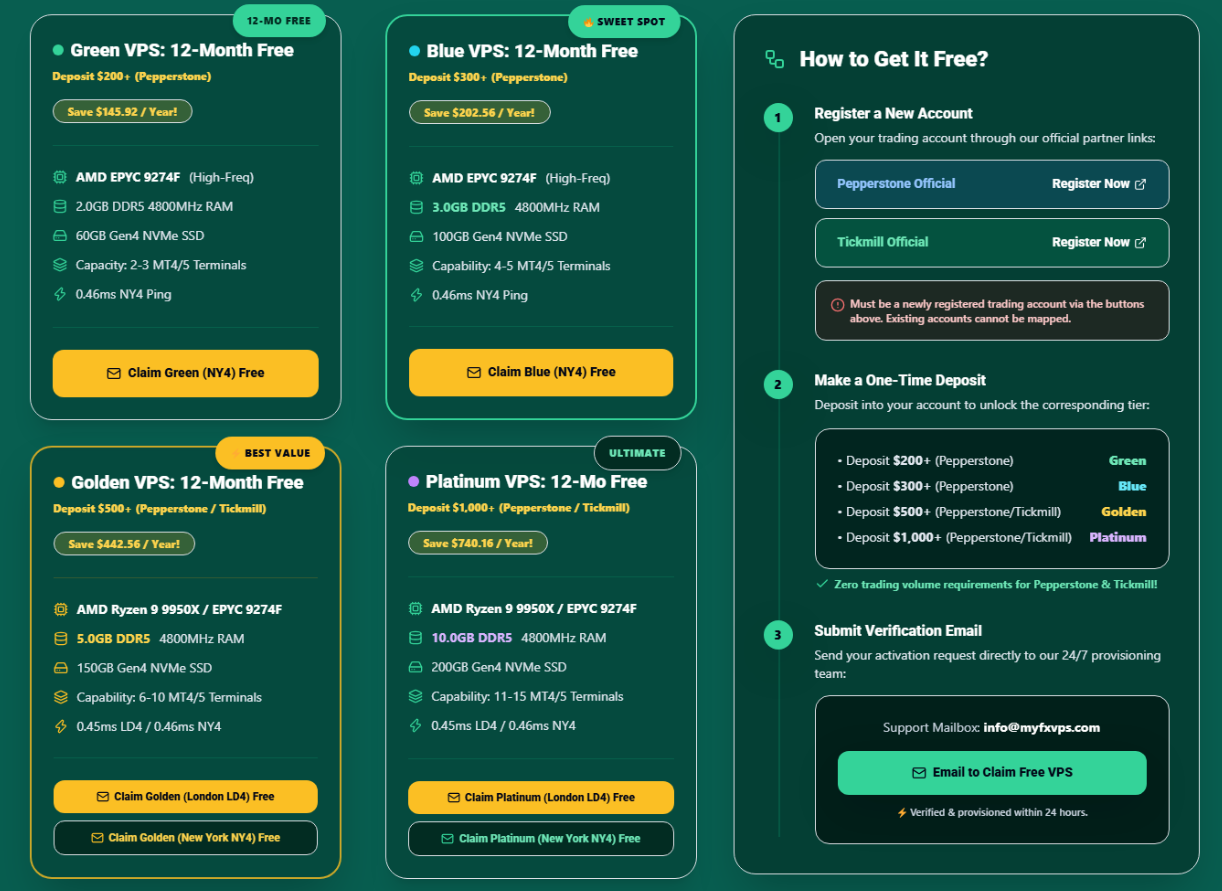
Get a premium, zero-overbooked VPS 100% FREE indefinitely by connecting your Pepperstone or Tickmill trading account!
🎁 Claim Your 100% Free Premium VPS Now